 01
Product cutouts
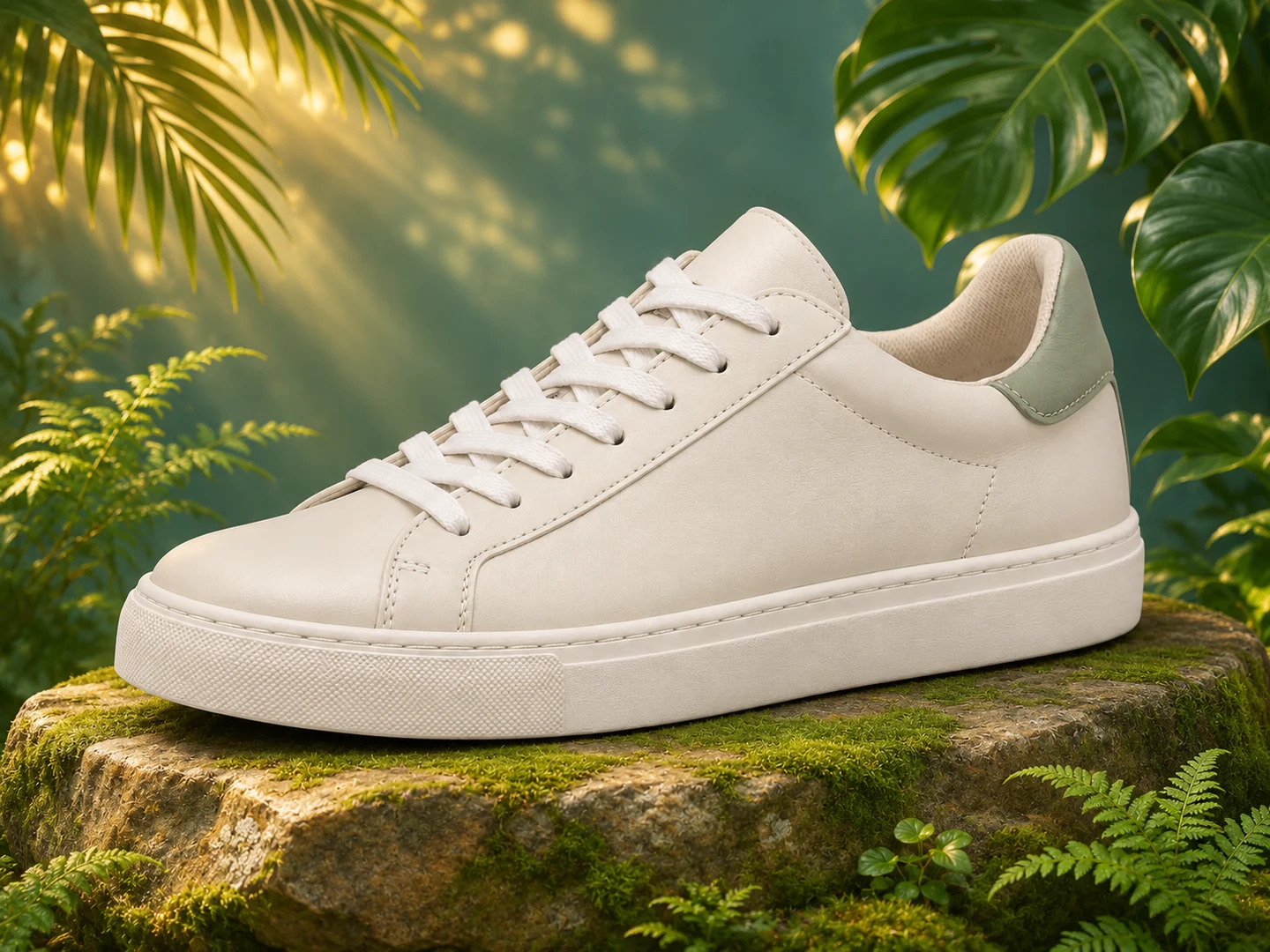
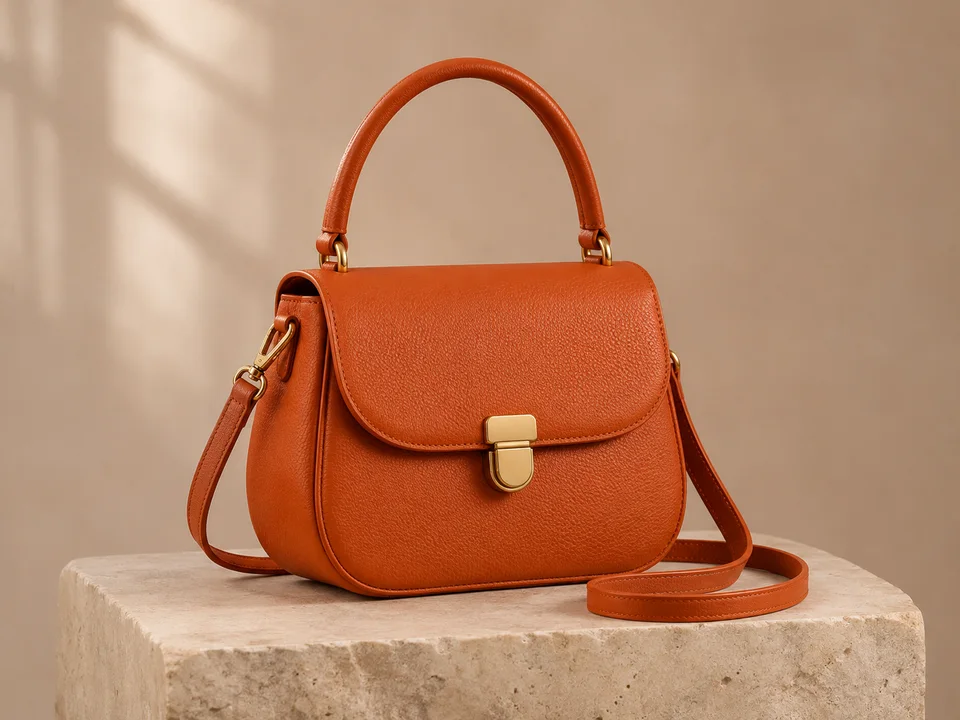
Create reusable product cutouts for catalogs, marketplace listings and your own layouts.
Keep your subject. Leave the background behind. Get a transparent PNG with automatic AI background removal, right in your browser.
or drag and drop
JPEG, PNG or WEBP · no file-size capWHAT IT DOES
An AI background remover separates the main subject from the surrounding scene. Instead of tracing an outline by hand, you choose a photo and the tool identifies which pixels belong to the foreground.
Nelo Image turns that prediction into a transparent PNG. Keep a product, portrait or pet as a reusable cutout for a listing, presentation, invitation or your next design.
The checkerboard in the preview shows transparency. Use light and dark previews to see your cutout in different settings, then save a transparent PNG for your next design.
01Create reusable product cutouts for catalogs, marketplace listings and your own layouts.
 02
Bring portraits into profile designs, invitations and creative compositions.
 03
Turn pets and everyday subjects into transparent cutouts for cards, collages and social posts.
 04
Keep the background transparent for reuse in a design application. The preview checkerboard is not part of the download.
HOW IT WORKS
From a photo on your device to a reusable transparent cutout.
Drop a JPEG, PNG or WEBP into the editor, or choose a file. There is no file-size cap; supported pixel dimensions and output resizing are explained below.
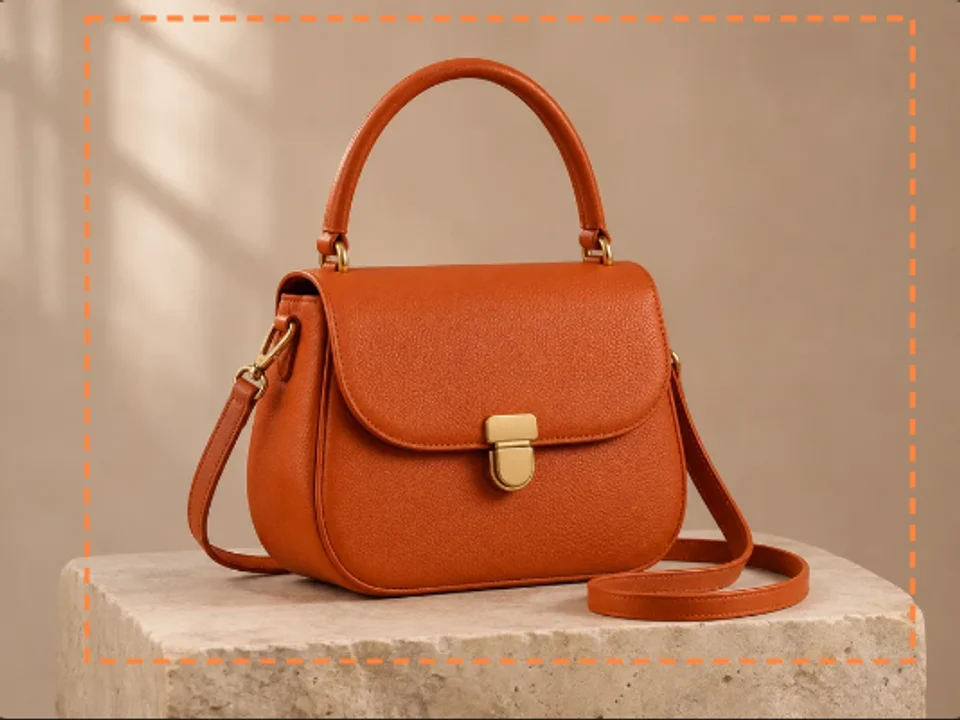
The tool finds possible subjects. Choose one from the options to remove its background automatically. For a custom selection, draw a box around the subject you want to keep.
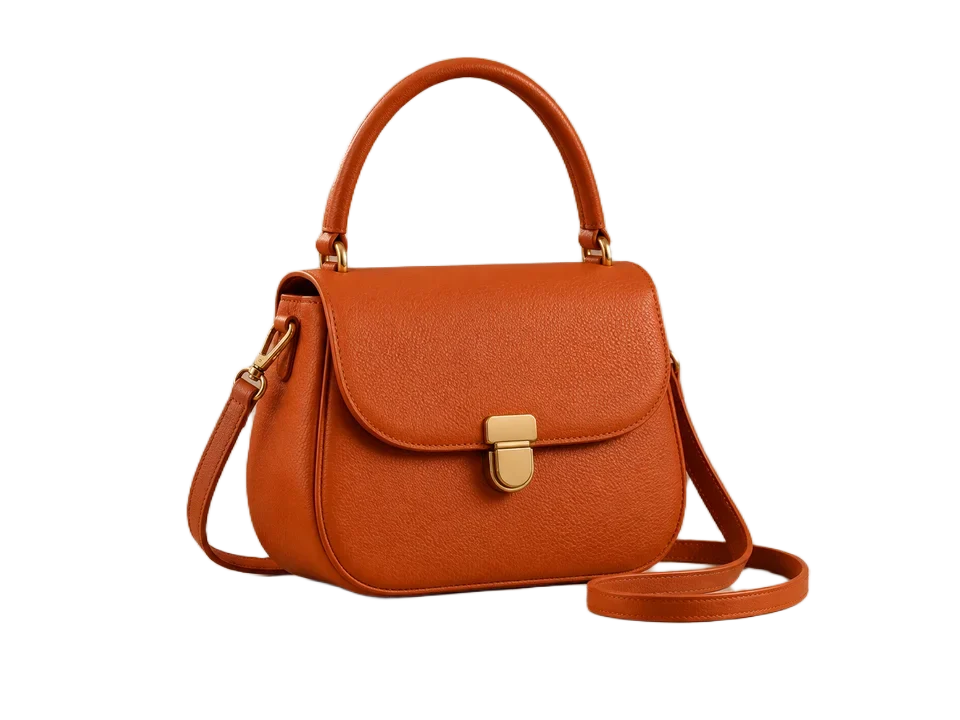
Compare the original, inspect edges against light and dark previews, then save the transparent PNG. The editor shows the output dimensions.
WHY NELO IMAGE
A focused tool for keeping your subject and preparing it for your next design.
Remove backgrounds and save transparent PNGs without an account, subscription or credits. Free for everyday creative work, with fair-use protections.
Your browser processes the photo locally. Your source and result are not uploaded or added to a cloud gallery.
Choose a detected subject without a written prompt. Original comparison and light or dark previews help you inspect the cutout before saving.
GOOD TO KNOW
Yes. Remove backgrounds and download transparent PNGs for free, without an account, subscription or credits. Fair-use protections help keep the tool available for everyday creative work.
Upload a photo and choose a detected subject from the image options. Background removal starts automatically. Click a detected subject on the original photo, or switch to Manual to draw your own selection box.
Your photo and result stay in your browser for this tool. Only the public files needed to run it are downloaded and cached. Your photo and output are not saved in that cache.
Choose a photo, let the tool prepare on your device, and select a subject. Progress is displayed as the tool gets ready. The prepared files can be reused for your next image.
Use JPEG, PNG or WEBP images within 40 million pixels. There is no file-size cap. Images with a side above 2048 pixels are resized for browser processing, and the output dimensions are shown beside your result.
Yes. Download PNG saves your cutout with transparency. White and dark previews let you see how it looks on different backgrounds while keeping the downloaded PNG transparent.
Yes. Select the product, person or pet you want to keep and create a reusable transparent cutout for product listings, profile designs, invitations and creative compositions.
Upload your photo, select the subject to keep, and preview the result on the dark background. Download the transparent PNG for your next design.
Yes. Download the transparent PNG and place it on your own photo, color or design. Transparency makes the cutout easy to reuse across different layouts.
Start with a clear original image and select the complete subject, including the details you want to keep. Use the light and dark previews to review your cutout, then save it as a transparent PNG.
Want a step-by-step walkthrough? Read our guide to removing a background from an image
YOUR NEXT EDIT