Product scenes
Create a consistent setting for a catalog or a new campaign concept.
Change background in your photo with a simple instruction. Upload an image and describe a white studio, product backdrop or portrait setting.
or drag and drop · JPEG, PNG or WEBP · Large images optimized automatically
MAKE IT YOURS
WHAT IT DOES
A photo background changer reimagines the setting around a subject. Start with your own photo and describe a new environment, from a clean studio scene to a sunlit outdoor location.
Use Nelo Image to plan a focused edit: name the background you want and specify which subject details to preserve. A clear instruction gives the image-to-image workflow a precise creative direction.
Change background for product presentations, profile portraits and campaign concepts. Build a cohesive scene by describing the lighting, surface, perspective and mood together.
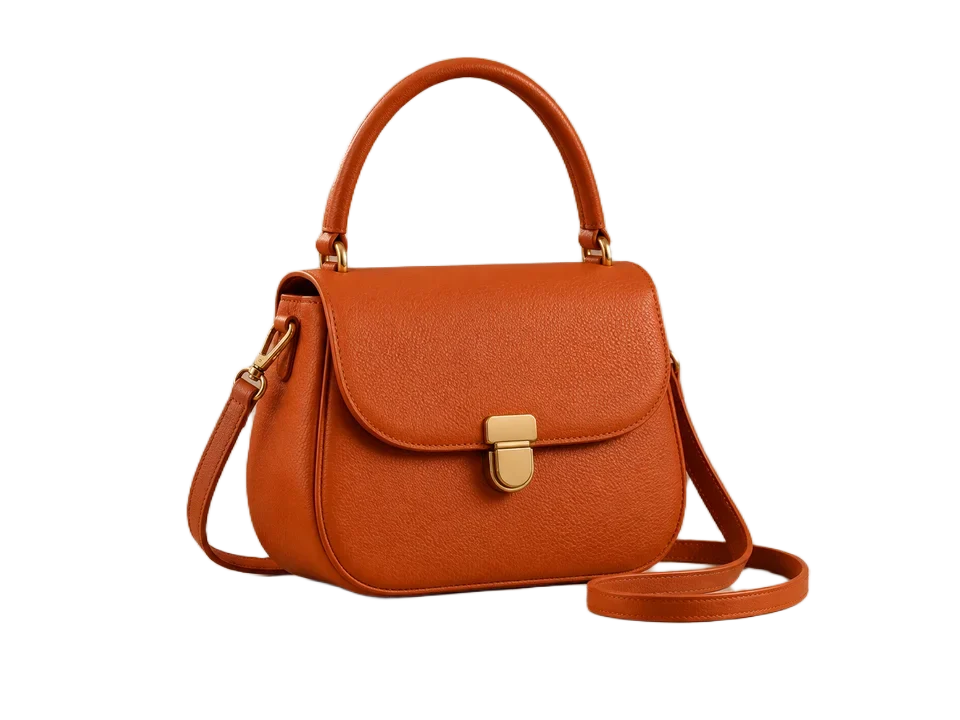
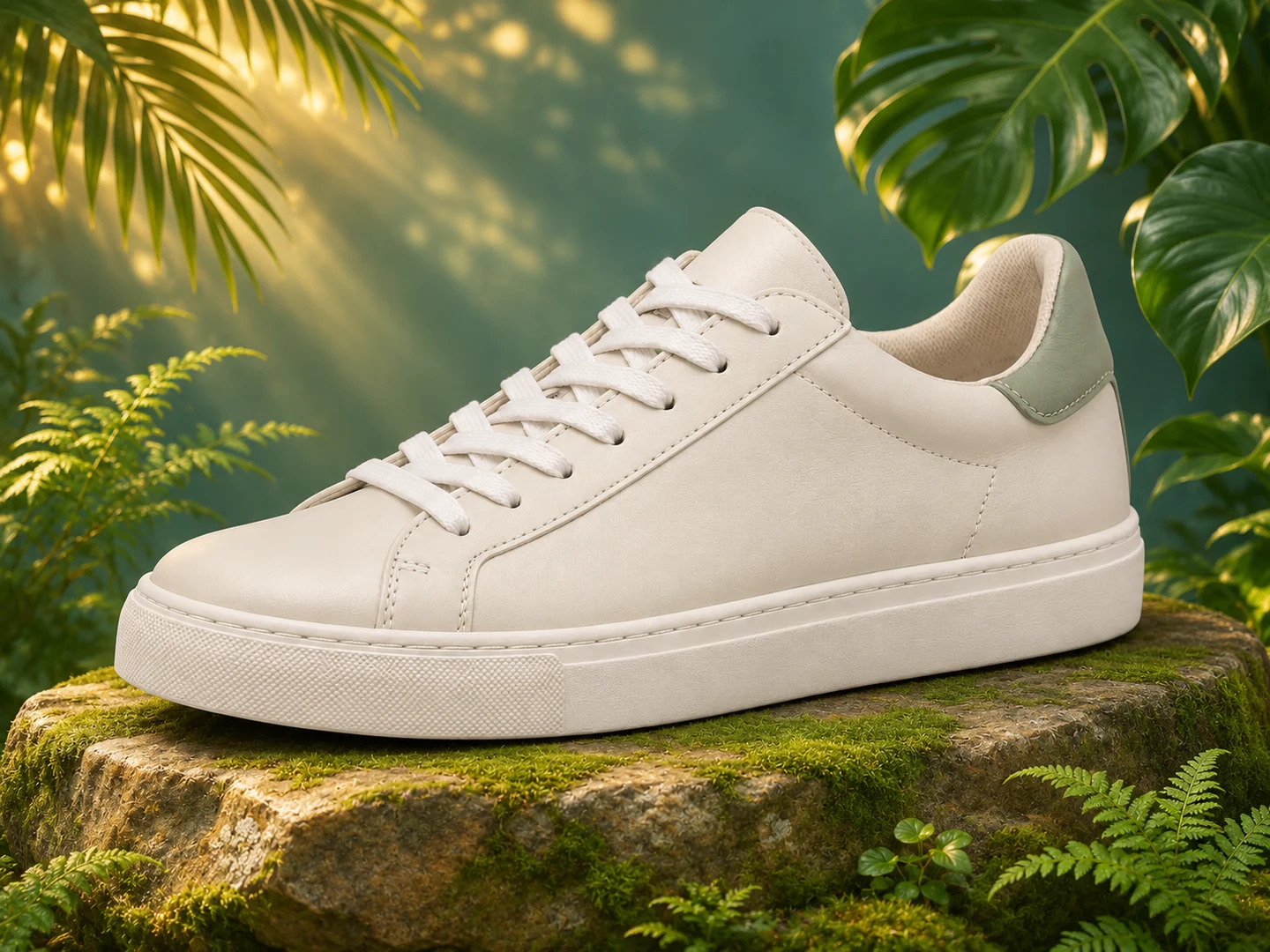
Create a consistent setting for a catalog or a new campaign concept.
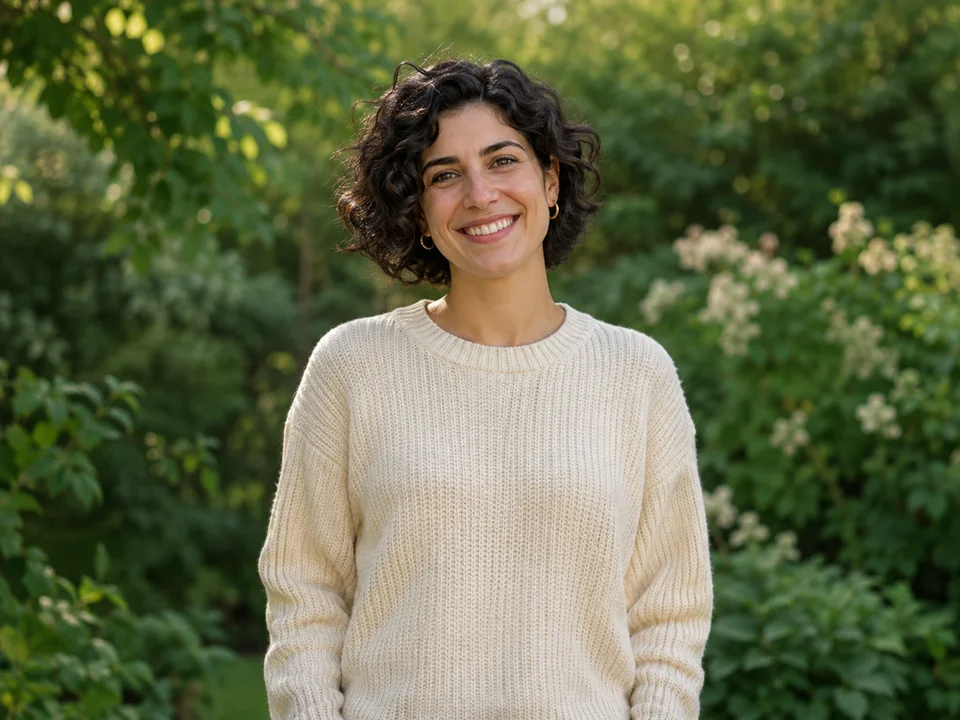
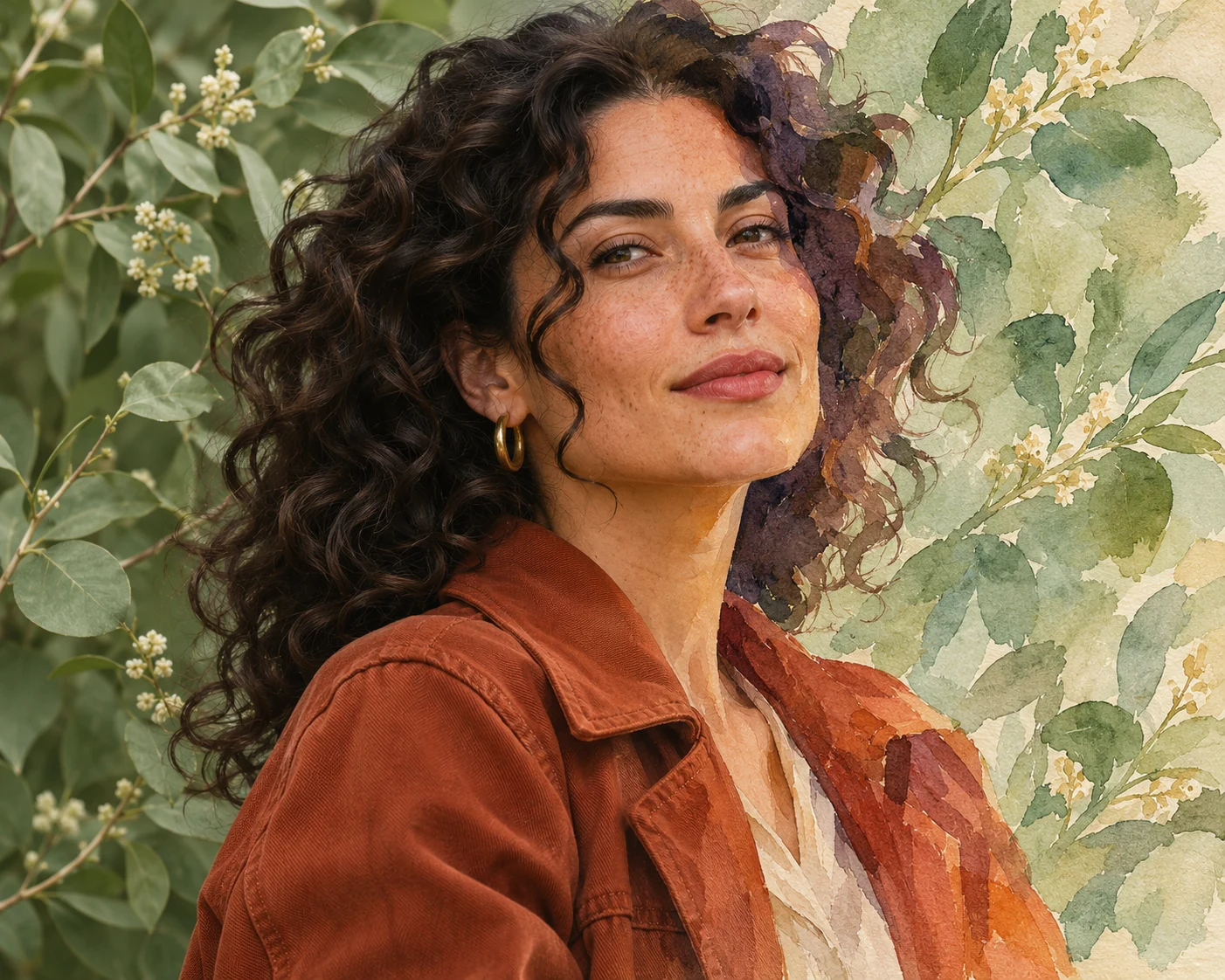
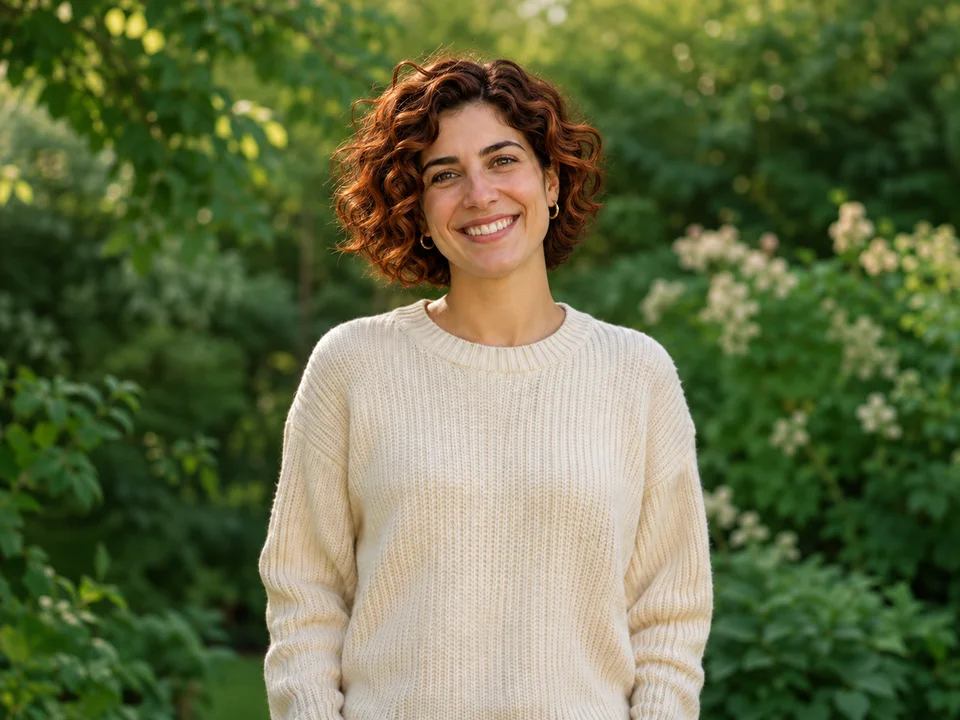
Bring a portrait into a different location, lighting style or mood.
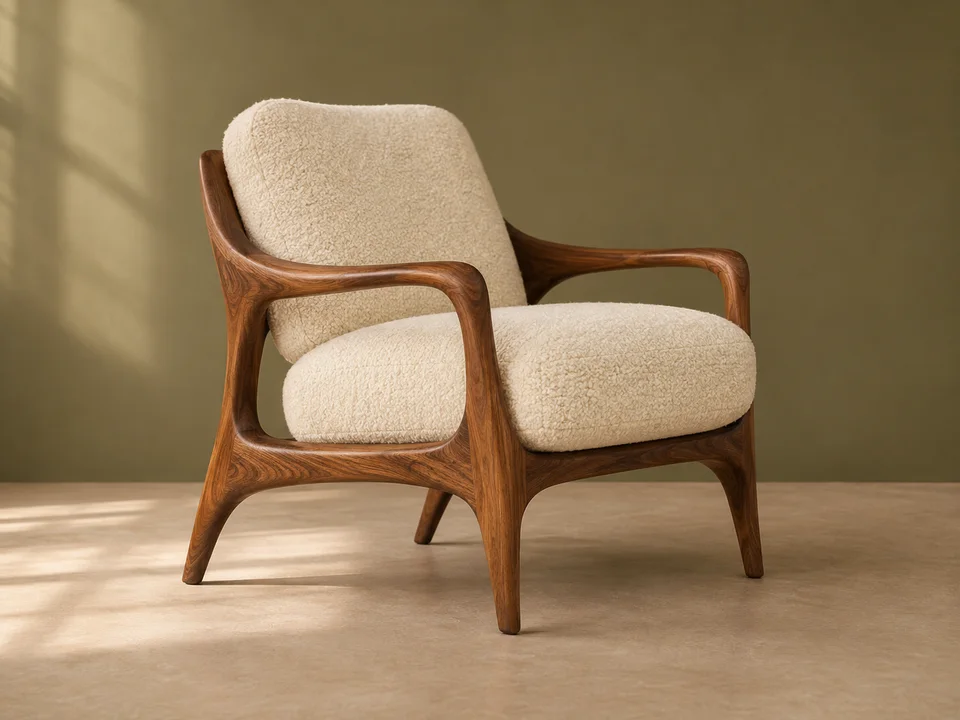
Plan interiors and room settings around a favorite piece.
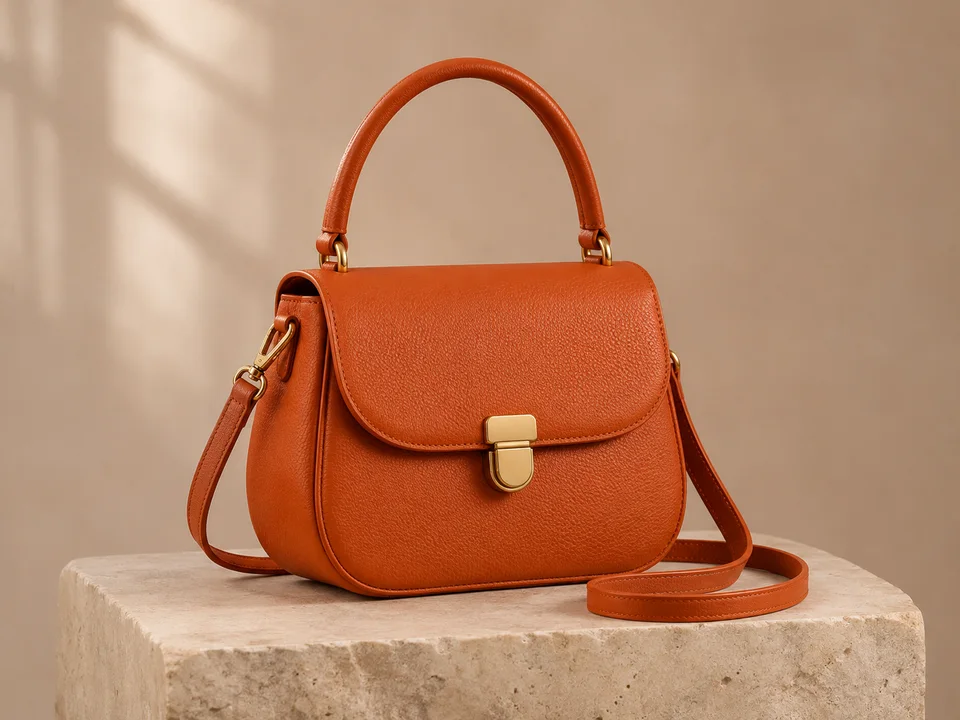
Describe a simple surface and backdrop for a clean product composition.
HOW IT WORKS
Your photo, a clear instruction and a new creative direction.
Choose a JPEG, PNG or WEBP. Keep the main subject clearly visible so your instruction can focus on its surroundings.
Name a setting, surface and lighting style. Add the subject details you want to preserve, or start with a suggested direction.
Select your subscription, confirm the edit in your image workspace, then review and download the generated PNG.
WHY NELO IMAGE
Describe a complete scene in natural language, including the background, lighting and surface.
Keep the product or person central to the brief while exploring a different environment around them.
Use the same subscription plans and private image workflow for your next background concept.
MORE ROOM FOR YOUR IDEAS
Choose your creative pace. Subscribe monthly or save with yearly billing.
For occasional ideas and personal projects.
$19.99 billed monthly
Renews monthly. Cancel renewal from your account.
For creators building a regular visual workflow.
$39.99 billed monthly
Renews monthly. Cancel renewal from your account.
For larger projects and frequent creative iteration.
$79.99 billed monthly
Renews monthly. Cancel renewal from your account.
Credit cost depends on your model, resolution and reference images. Banana 2.1 uses 2 / 3 / 5 credits at 1K / 2K / 4K. GPT Image 2.6 Flare and Sunburst use 4 / 8 / 14 credits, plus 1 credit per reference image. The Generate button shows the total before submission. Monthly credits refresh with your plan and do not roll over.
Payments are handled by Waffo Pancake. Subscriptions renew until cancelled. First subscription: request a refund within 7 days if no paid credits have been used. Refund policy · Cancellation · Privacy
GOOD TO KNOW
Upload a photo, describe the new setting and choose a subscription plan. Use a specific instruction such as “replace the wall with a warm beige studio, keep the handbag unchanged.”
Background-changing edits use the Nelo Image subscription workflow. Compare monthly and yearly plans below; Image-to-image generation uses a model-specific number of credits shown on the Generate button.
Describe the setting, light, surface and mood. Name the product or person to keep, and specify important details such as clothing, colors, labels and pose.
Yes. Product photos are a useful starting point for studio scenes, seasonal concepts and lifestyle settings. Include the product details that matter in your instruction.
Use a clear portrait and describe your preferred setting. Ask to preserve the face, expression, hairstyle and clothing while changing the surroundings.
Removing a background produces a transparent cutout. A background changer creates a new visual setting. Use Background Remover when you want a transparent PNG instead.
Choose JPEG, PNG or WEBP. Large images are optimized automatically before generation. Selecting a file creates a local preview.
Selecting a photo previews it in your browser. Submitting a generation sends the reference and editing instructions to the image provider under the site privacy policy.
The image workspace provides generated PNG downloads. Save completed images within the 24-hour private creation window.
Use one clear subject and describe a background with compatible camera perspective and lighting. Review the generated scene, then refine your instruction for another direction.
YOUR NEXT EDIT